# Discovering jobs
> Let Hiresweep suggest the roles your resume fits, search companies' job boards for them, and add the openings you like to your applications.
**Discover** finds real job openings for you, starting from your resume. Hiresweep suggests the job titles your resume qualifies you for, you check and edit them, and then it searches companies' public job boards for openings. The jobs it finds wait in a list until you decide what to do with each one.
Open it from **Discover** in the dashboard sidebar, under **Job search**.
You need a verified email address to start a search. If you have no resume yet, Discover shows **Create a resume to
start finding jobs**. See [Creating your first resume](https://docs.hiresweep.com/guides/creating-your-first-resume).
## How a search works
A search has three parts:
| Part | What it is |
| ----------- | ---------------------------------------------------------------------------------------------------------- |
| **Targets** | The job titles you are searching for, each with the keywords an applicant tracking system (ATS) scans for. |
| **Filters** | Where you want to work, how recent the postings should be, and what kind of company. |
| **Matches** | The openings the search found. A match is not an application until you select **Add job**. |
Nothing is searched until you have reviewed the Targets.
## Start a search
Select **New search**. The first time, select **Start a search** on the **Find jobs that fit your resume** card.
Choose the **Resume** to search for. Your most recently edited resume is preselected. Set **Titles to suggest**
between 3 and 10 (the default is 5).
Select **Generate Targets**. Hiresweep reads your resume and suggests job titles with their keywords. This uses
one AI action.
Untick the roles you don't want and reword titles and keywords the way you would search for them. See [Edit
Targets](#edit-targets).
Choose locations, how recent the postings should be, and the company stage. See [Filters](#filters).
Select **Search**. A search takes a few minutes. You can leave the page; the search keeps going and the jobs wait
for you on Discover.
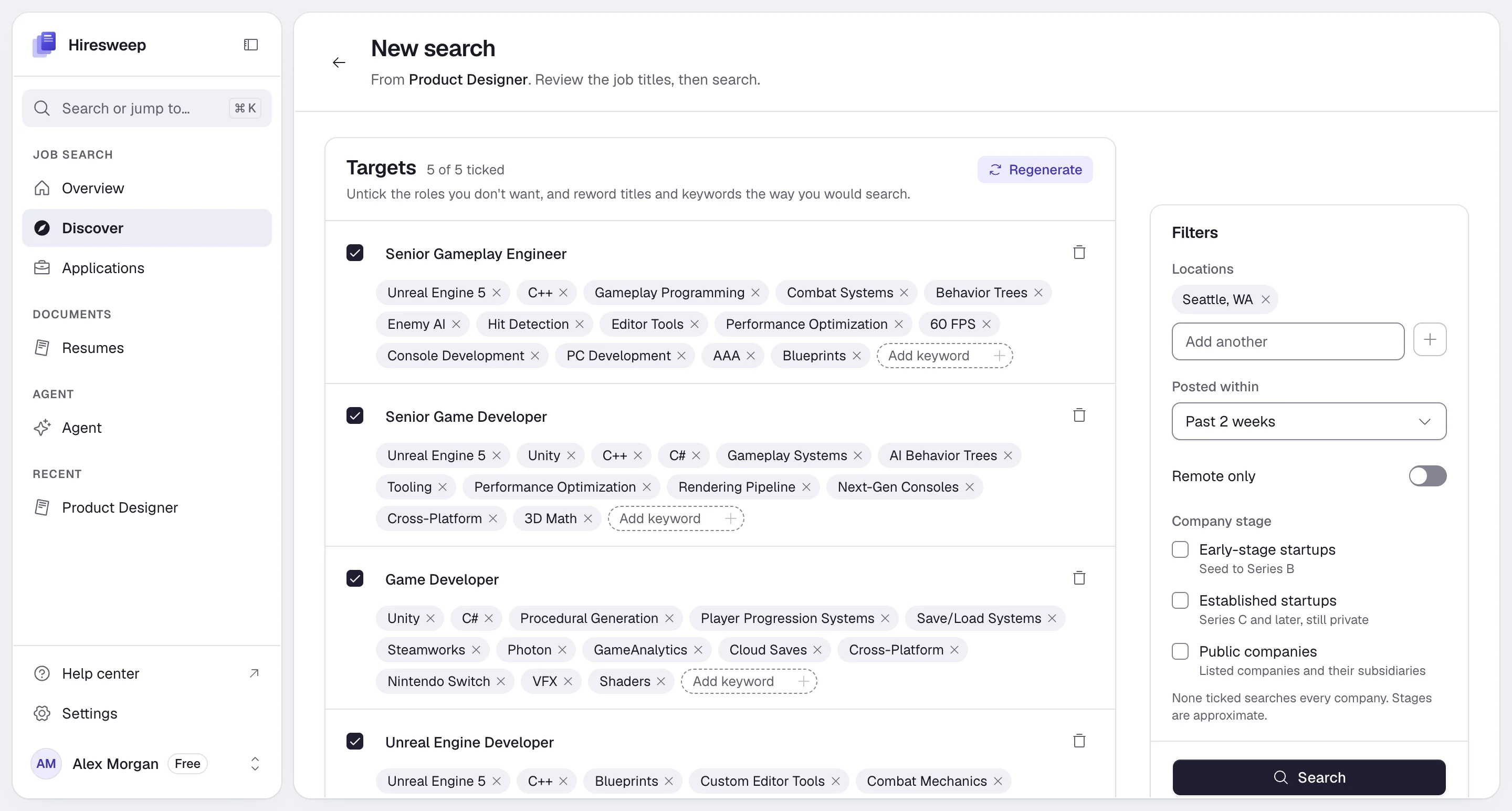
Targets appear one at a time while Hiresweep suggests them. You can edit them and search once they are all in.
Select **Save draft** instead of **Search** to keep your Targets and filters and come back later. Saved drafts appear under **Earlier searches** with a **Continue** button.
## Edit Targets
Each Target has a tick box, a title and a list of ATS keywords.
- Untick a Target to leave it out of the search without deleting it.
- Edit the title, or use **Add keyword** to add a keyword. Remove a keyword or a whole Target with its remove button.
- **Add a Target** adds an empty one you fill in yourself.
- **Regenerate** replaces every Target with new suggestions. Hiresweep asks before it throws your edits away, and it uses another AI action.
| Limit | Value |
| ------------------------ | -------------- |
| Targets per search | 10 |
| Keywords per Target | 15 |
| Title length | 120 characters |
| Keyword length | 60 characters |
## Filters
Cities, regions or countries to search in. Leave it empty to search anywhere. Hiresweep fills it in from your [apply
profile](https://docs.hiresweep.com/guides/setting-up-your-apply-profile), or from your resume when the profile has no location.
Past 24 hours, Past 3 days, Past week, Past 2 weeks or Past month.
Shows remote jobs open to people in your locations' countries, wherever the company is based.
**Early-stage startups** (Seed to Series B), **Established startups** (Series C and later, still private) and
**Public companies** (listed companies and their subsidiaries). Leave all unticked to search every company. Stages
are approximate, and picking any stage limits the search to the company directory described below.
## Where Hiresweep searches
Hiresweep reads only public job boards whose terms allow automated access. **LinkedIn and Indeed are never searched.**
Careers pages hosted on Greenhouse, Lever, Ashby, Workday, SmartRecruiters, Workable, Recruitee, Personio,
Rippling, Gem, BambooHR, Breezy HR, Pinpoint, Teamtailor, JazzHR, Jobvite, Homerun, Trakstar Hire, Polymer, Comeet
and HiBob. Hiresweep searches a curated directory of about 2,500 companies on these boards.
Remote OK, We Work Remotely, Himalayas, Jobicy and Arbeitnow.
Adzuna and USAJOBS. Only the Target title and location are sent to them, nothing else about you.
Matches from job sites and search APIs are labelled "via" where they were found. Matches from company boards show the company instead; use the **Board** filter to see which board a job came from.
A search returns at most 25 matches per Target and 100 per search.
## While the search runs
Discover shows **Searching companies' job boards…** with how many jobs it has found so far and the latest steps of the search. If a board refuses the search or returns only some of its jobs, it is listed (for example, **Workday showed only part of its results**), and the other boards carry on.
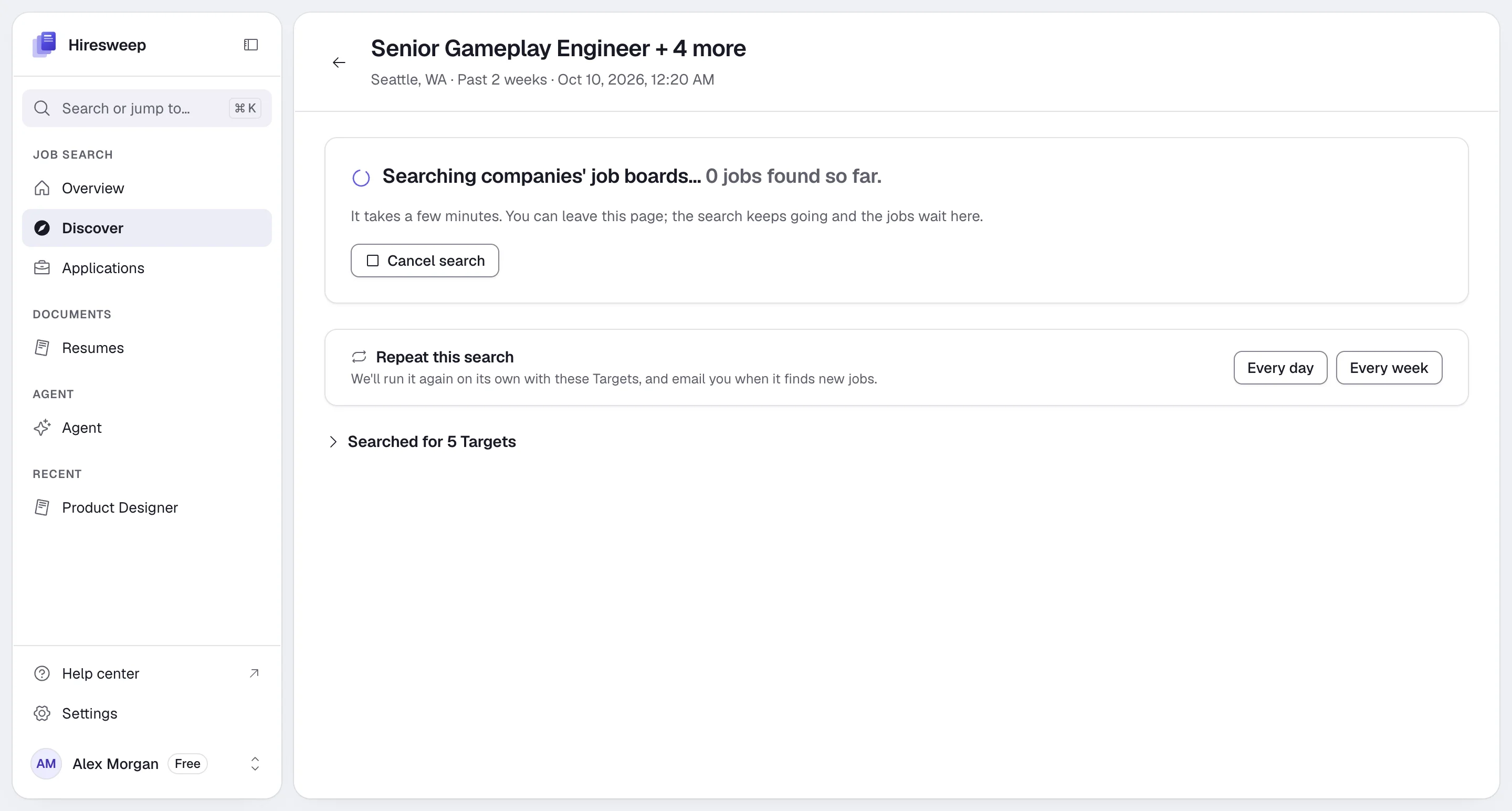
Select **Cancel search** to stop it. A search ends in one of these states:
- **N jobs found**: the matches are ready to review below. **Searched for N Targets** shows the Targets, filters and the boards that returned jobs.
- **No jobs found**: nothing matched your Targets and filters. Widen the location, turn off **Remote only**, choose a longer **Posted within**, or try different Targets. **Where it searched** lists the boards it tried.
- **Search cancelled**, or **Cancelled after N jobs**: you stopped it. Jobs found before that are kept.
- **The search stopped early**: something went wrong. The jobs found so far are kept.
## Review your matches
Each match shows the job title, the company, the location and how closely it fits.
### Match strength
| Label | Score |
| ----------- | --------- |
| **Strong** | 55 to 100 |
| **Partial** | 25 to 54 |
| **Loose** | Below 25 |
The score compares the job with your Target without AI: most of it comes from how closely the job title matches the Target's title, and the rest from the Target's keywords found in the job's title and description. Hover the label to see the exact score. The full review against your resume happens later, when you add the job and open it.
Select **Explain fit** to have Hiresweep write a one-sentence reason for each undecided job on the page (up to 20 jobs). A sparkle icon appears next to each job title; hover or tap it to read the reason. This uses one AI action per page.
### Filter and sort
- **Show** (in **List** view): To decide and added, Dismissed, Expired or All jobs.
- **Board** and **Target**: limit the list to one source or one Target. They appear when the matches come from more than one board or Target.
- **Sort by**: Closest match, Newest or Company.
- **View**: **List** shows every match in a table. **One at a time** shows one job per screen. Phones open in **One at a time**.
In **One at a time** view, **Why it fits** explains the current job and the next ones in the queue (up to 20) for one AI action, and can also note the job's biggest gap against your resume.
### Decide on each job
| Action | What happens |
| ----------- | ------------------------------------------------------------------------------------------------------------------- |
| **Add job** | Creates an application for the job. Adding costs nothing; the posting is read when you open the application. |
| **Dismiss** | Hides the job. Find it again under **Show → Dismissed** and select **Restore**. |
| **Later** | In **One at a time** view, skips to the next job and keeps this one in the list. |
In **One at a time** view, press A to add, D to dismiss and S for later.
To act on several jobs, tick their rows and select **Add jobs** or **Dismiss**.
A job you already track shows **Already tracking** (**Tracked** on phones), with an arrow button that opens the application.
A match you don't decide on expires after 30 days. Later searches for the same resume skip the jobs you already
added or dismissed. Jobs you left undecided can turn up again.
## Search again
When a search has finished, select **Search again with these Targets**. Hiresweep creates a new draft with the same Targets and filters; adjust it if you like and select **Search**. To run it on its own, use [Repeat this search](https://docs.hiresweep.com/guides/repeating-job-searches).
**Earlier searches** on Discover's front page lists your searches. Unfinished ones carry a status badge (Draft, Searching, Failed or Cancelled), and runs started by a repeating search are marked **Scheduled**. To delete a search, hover its row and select the trash icon. Its matches are deleted with it, but applications you created from them stay.
## What it costs
| Step | Cost |
| --------------------- | --------------------------------------------------------------------------------------- |
| **Generate Targets** | 1 AI action (also for **Regenerate**) |
| **Search** | 1 job search, counted only when the search finds at least one job |
| **Explain fit** | 1 AI action per page of up to 20 jobs |
| **Add job** | Free |
Your plan also limits how many searches you can run per day and at the same time, and only one search per resume can run at once. See [Plans and usage](https://docs.hiresweep.com/guides/plans-and-usage).
## Troubleshooting
Tick at least one Target. If the page says **Searching job boards isn't set up on this server**, job search is not
available on this Hiresweep server.
Only one search per resume can run at a time. Wait for it to finish, or cancel it.
Your plan doesn't include job search, you have used its job searches or today's limit, or another search is still
running. Select **See plans** to compare plans, or wait for the other search to finish.
Add more Targets, use broader keywords, add locations, widen **Posted within**, or clear **Company stage**.